PRODUCT GUIDE

How to use TB Oracle

Choose your role, then use the screenshots and sidebar paths to find each tool. Leaders see the full guide, including clan controls.

SHOW TOOLS FOR
NAVIGATION

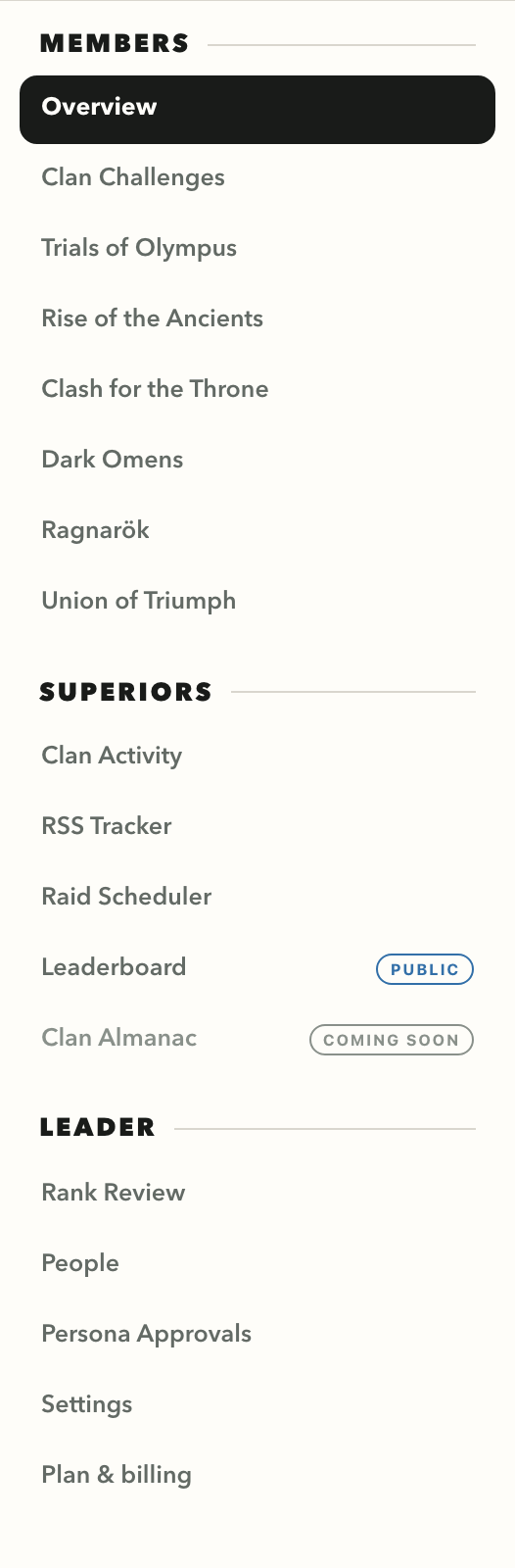
Find a screen

Choose a tool in the pictured sidebar to jump to its walkthrough. This is the Leader menu; your dashboard shows the groups available to your role.

Clan Almanac is marked coming soon in the sidebar.

LEADER

Leader controls

Access, rank decisions, clan settings, and billing.

01 / LEADER

Rank Review

Review promotion and demotion suggestions against the evidence behind them.

IN THE SIDEBARLeader → Rank Review
USE IT
  1. 01Choose Promotion, Demotion review, Maintain, or Insufficient data under Review category.
  2. 02Use the in-game rank filters, then open a member row.
  3. 03Read finalized event evidence, chests, and silver context before deciding what to do in game.

Suggestions support Leader judgment. Oracle does not change game ranks; missing results do not count as zero.
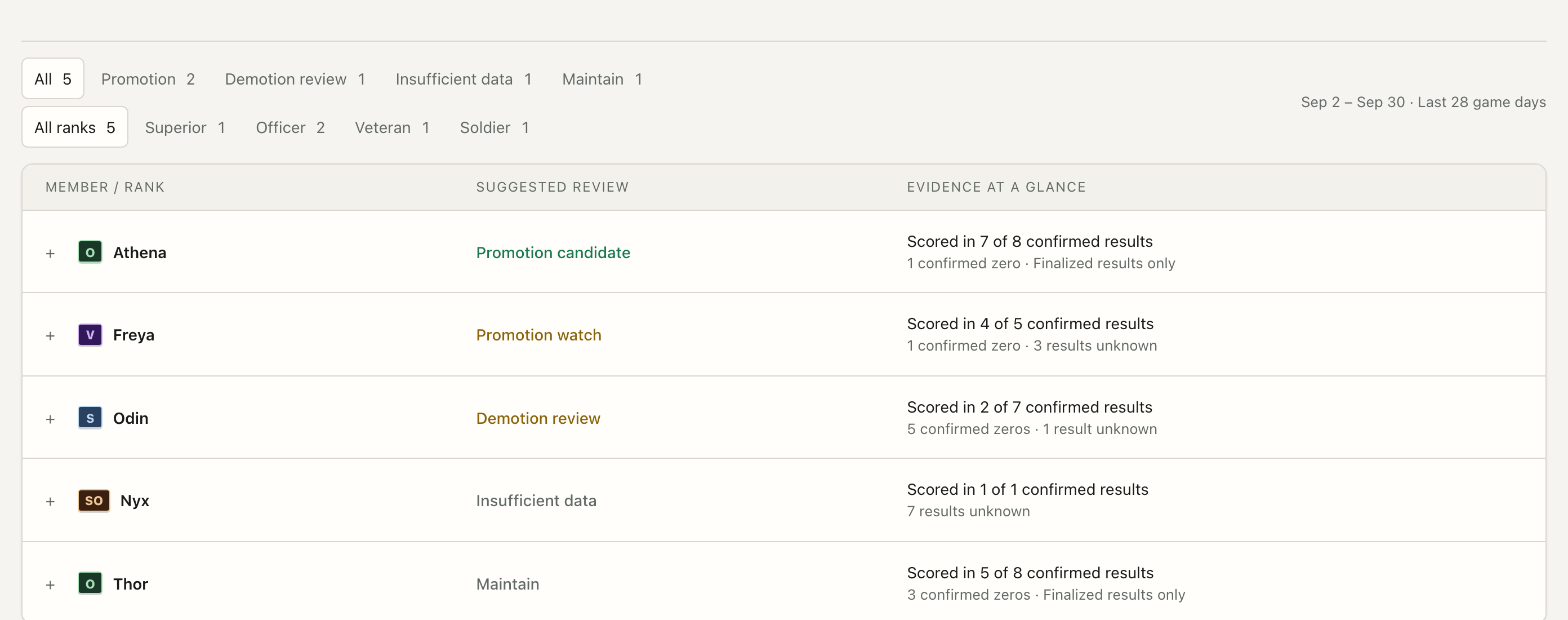
Rank Review screen showing the controls described above
Rank Review · sample results · select a number to see its stepSwipe image to inspect →View full screenshot ↗
02 / LEADER

People & invite links

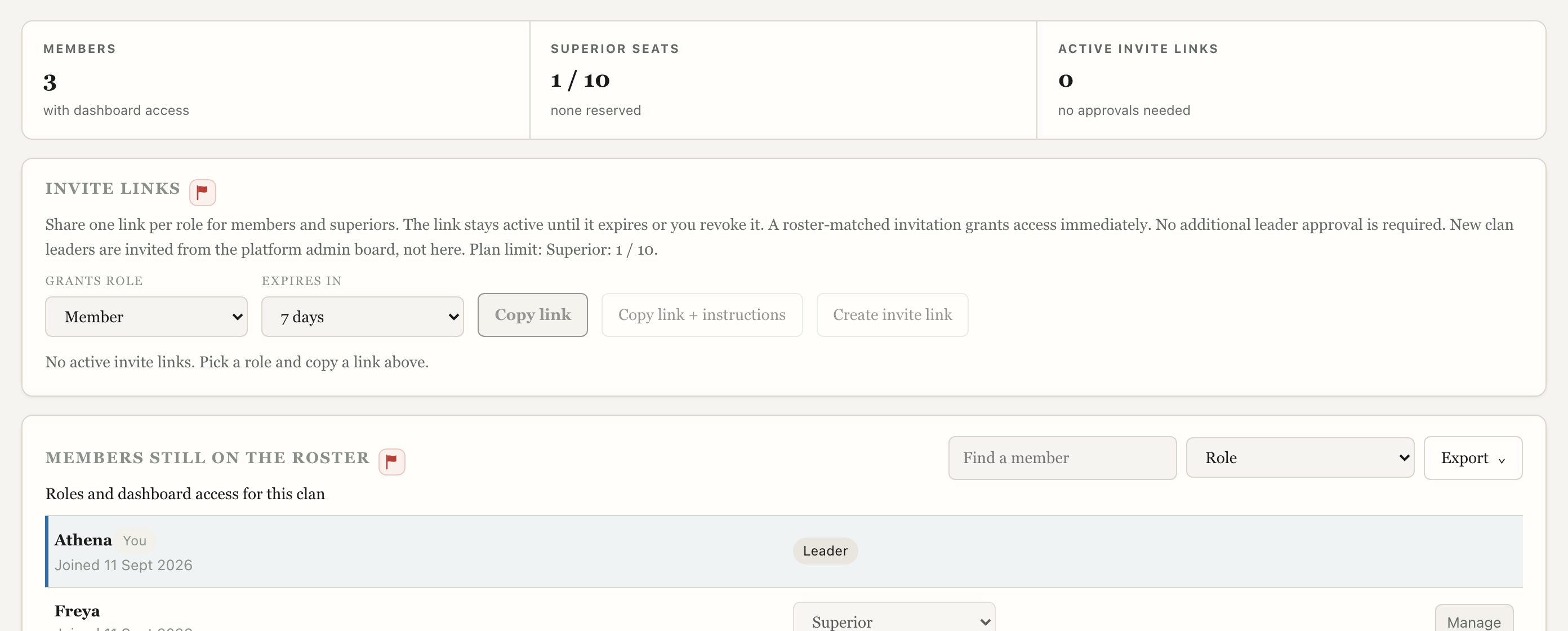
Manage access, invite links, and roster changes in one place.

IN THE SIDEBARLeader → People
USE IT
  1. 01Check Members, Superior seats, and Active invite links at the top.
  2. 02Under Invite links, choose Grants role and Expires in, then click Copy link + instructions.
  3. 03Review No longer on the roster before removing access; revoke old links when needed.

Roster-matched invites grant access immediately. Member logins require Dynasty; Superior seats depend on plan. Actions are disabled in this sample capture.

People & invite links screen showing the controls described above
People · sample roster · select a number to see its stepSwipe image to inspect →View full screenshot ↗
03 / LEADER

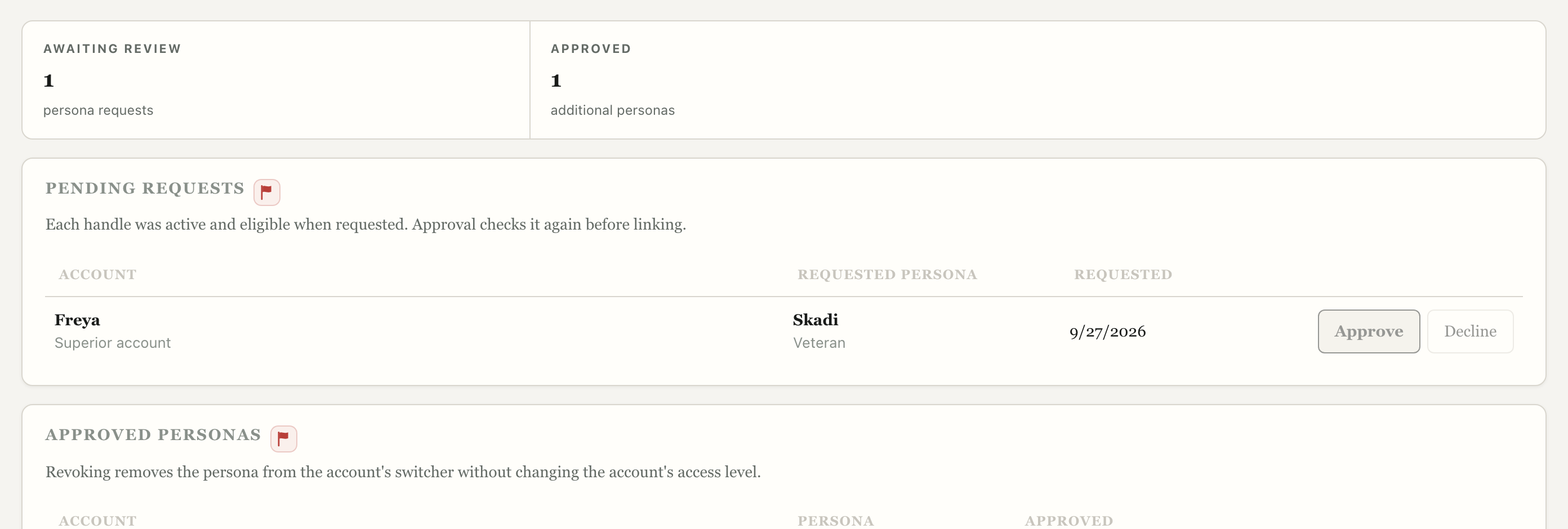
Persona Approvals

Control additional roster identities members ask to use.

IN THE SIDEBARLeader → Persona Approvals
USE IT
  1. 01Open Pending Requests and check the account and requested persona.
  2. 02Choose Approve or Decline for each request.
  3. 03Use Approved Personas → Revoke when an extra identity should no longer be available.
Persona Approvals screen showing the controls described above
Persona Approvals · sample requests · select a number to see its stepSwipe image to inspect →View full screenshot ↗
04 / LEADER

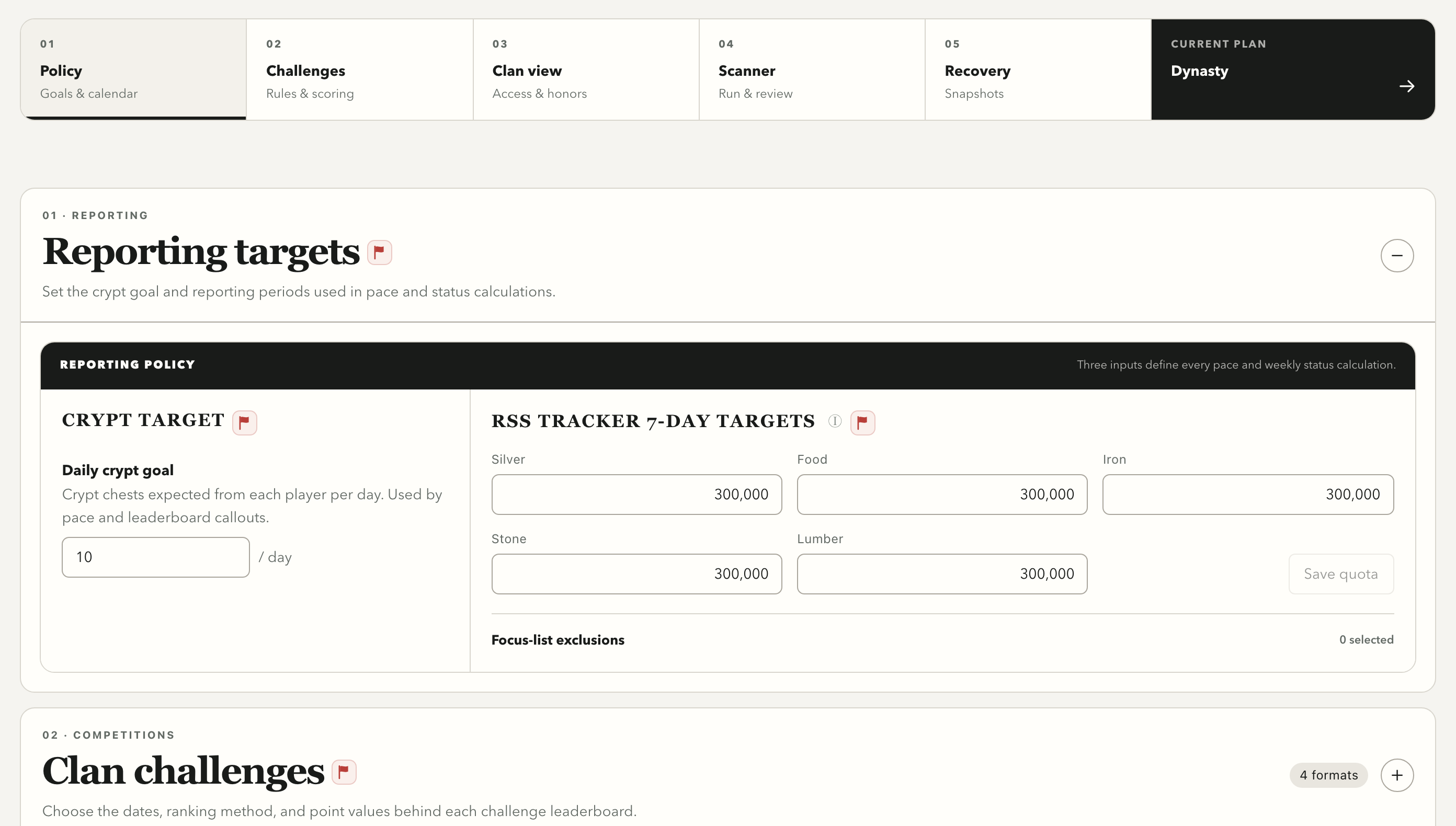
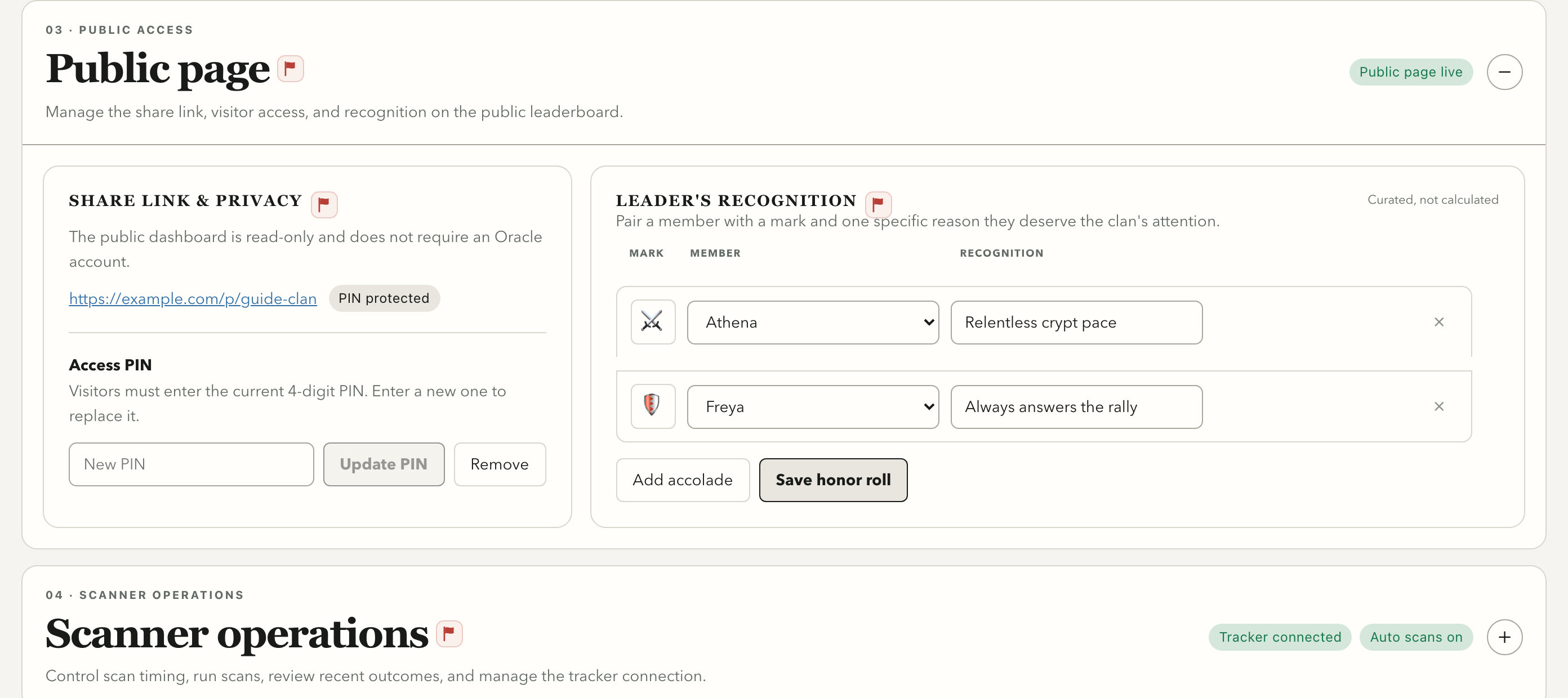
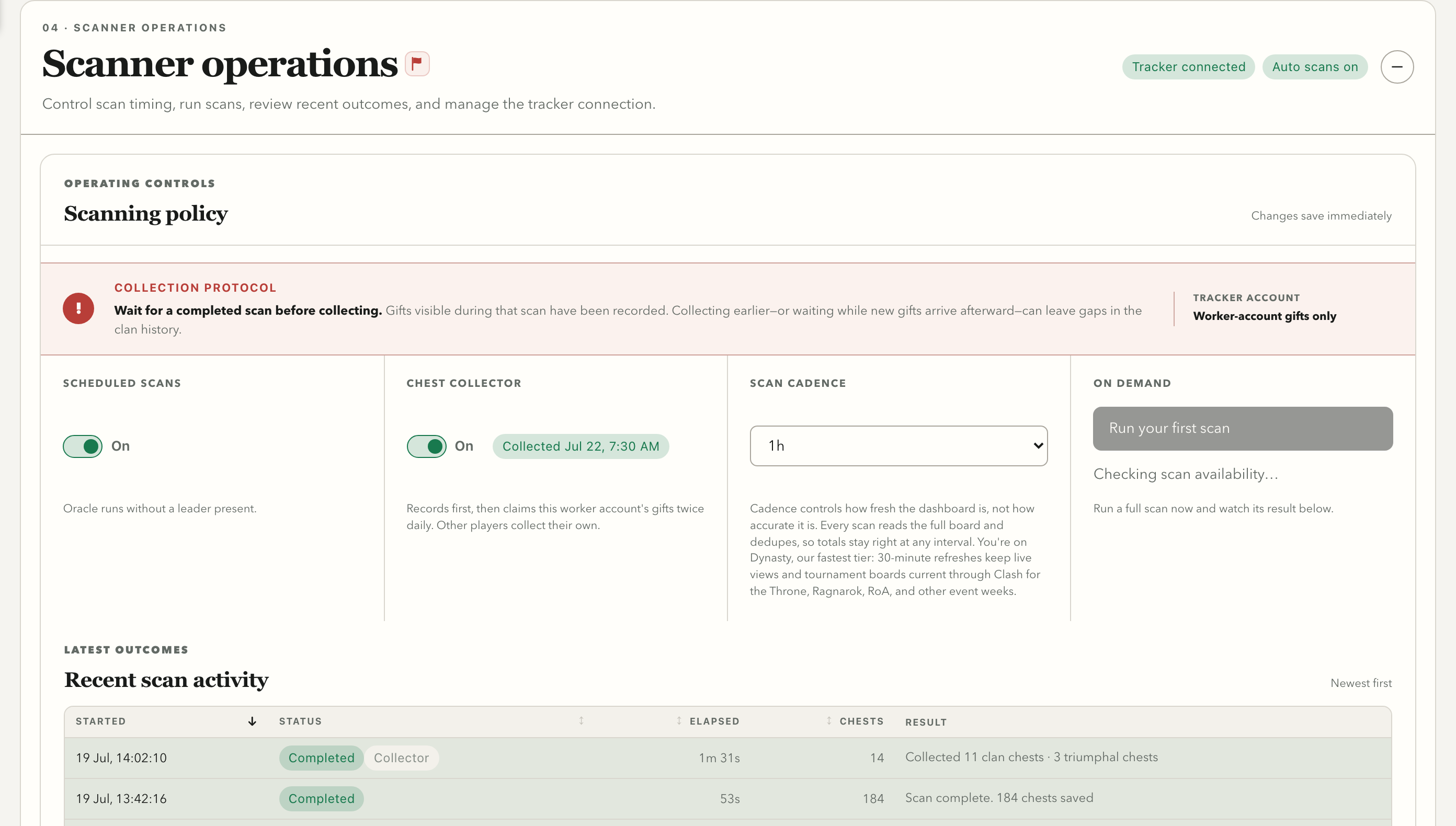
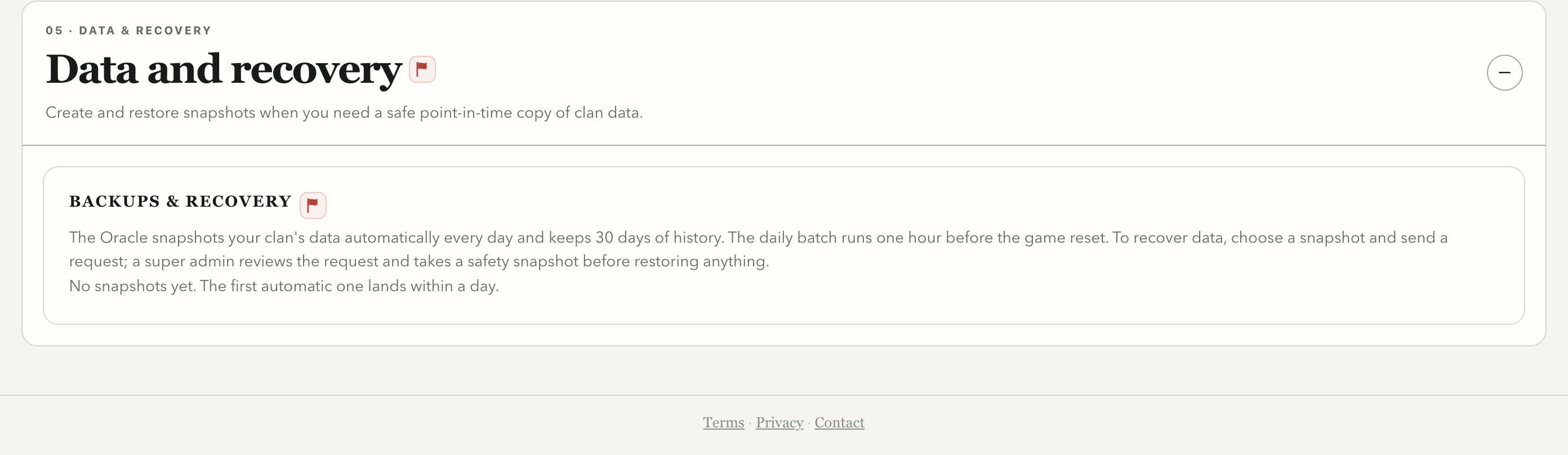
Settings & clan policy

Set targets, challenge rules, public access, scanner cadence, and recovery options.

IN THE SIDEBARLeader → Settings
USE IT
  1. 01Open Policy → Reporting targets to set the Daily crypt goal.
  2. 02Open Challenges for rules and visibility; open Public page to copy the share link or save a PIN.
  3. 03Open Scanner operations for scheduled scans, collection, cadence, and recent activity; use Data and recovery for snapshots.

Check the Saved state after changing a clan-wide setting.

Settings & clan policy screen showing the controls described above
Settings · reporting targets · select a number to see its stepSwipe image to inspect →View full screenshot ↗
05 / LEADER

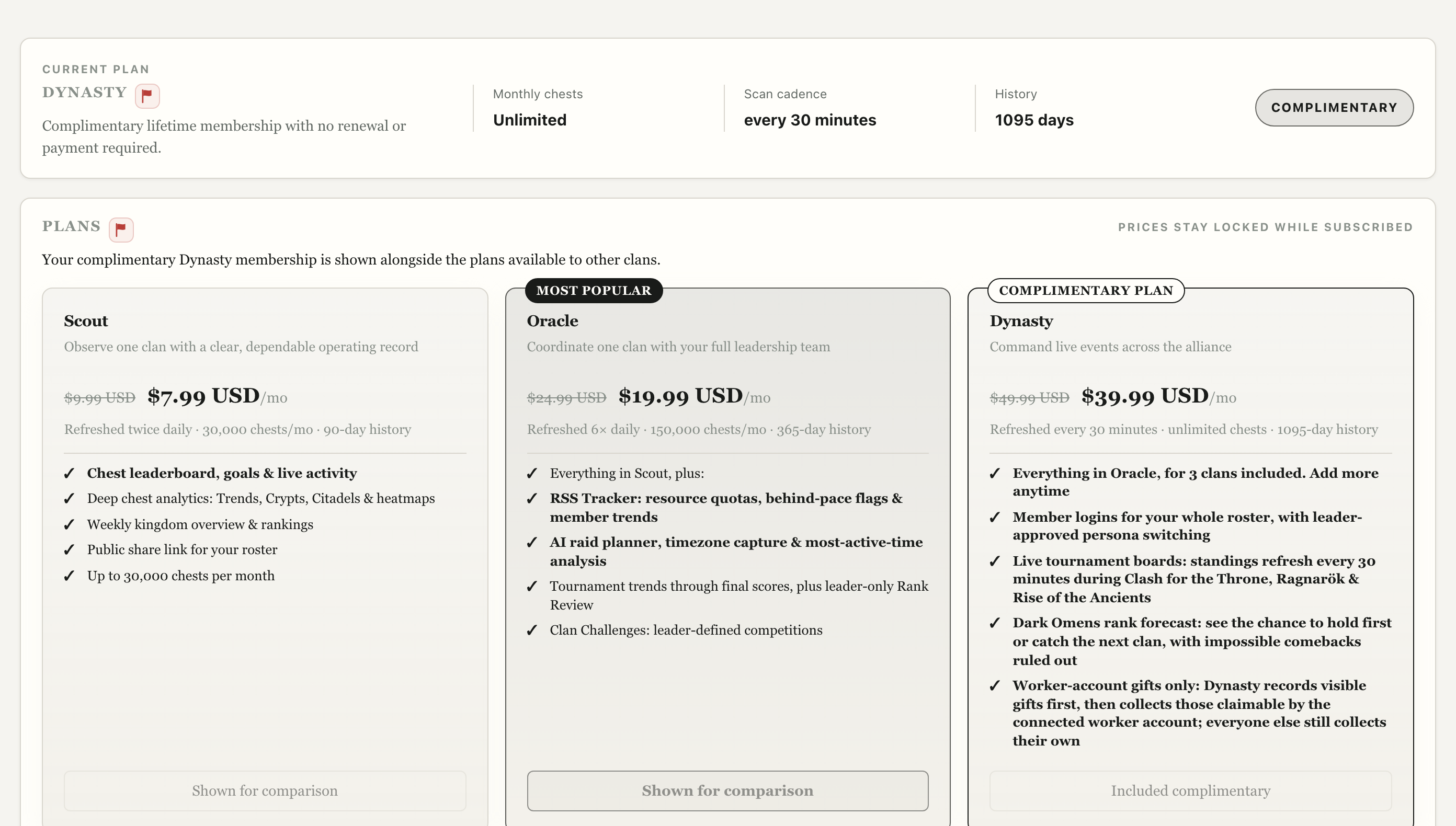
Plan & billing

See the plan, trial, payment status, invoices, and upgrades.

IN THE SIDEBARLeader → Plan & billing
USE IT
  1. 01Read Current plan for the scan cadence, chest limit, and history window.
  2. 02Compare Scout, Oracle, and Dynasty to see which tools and seats each includes.
  3. 03On a paid account, use Manage billing for payment methods and invoices.

This sample clan has a complimentary Dynasty plan, so payment controls do not appear in its screenshot.

Plan & billing screen showing the controls described above
Plan & billing · sample accountSwipe image to inspect →View full screenshot ↗
SUPERIOR & SHARED

Day-to-day tools

Activity, resources, scheduling, challenges, and the public board.

01 / CLAN

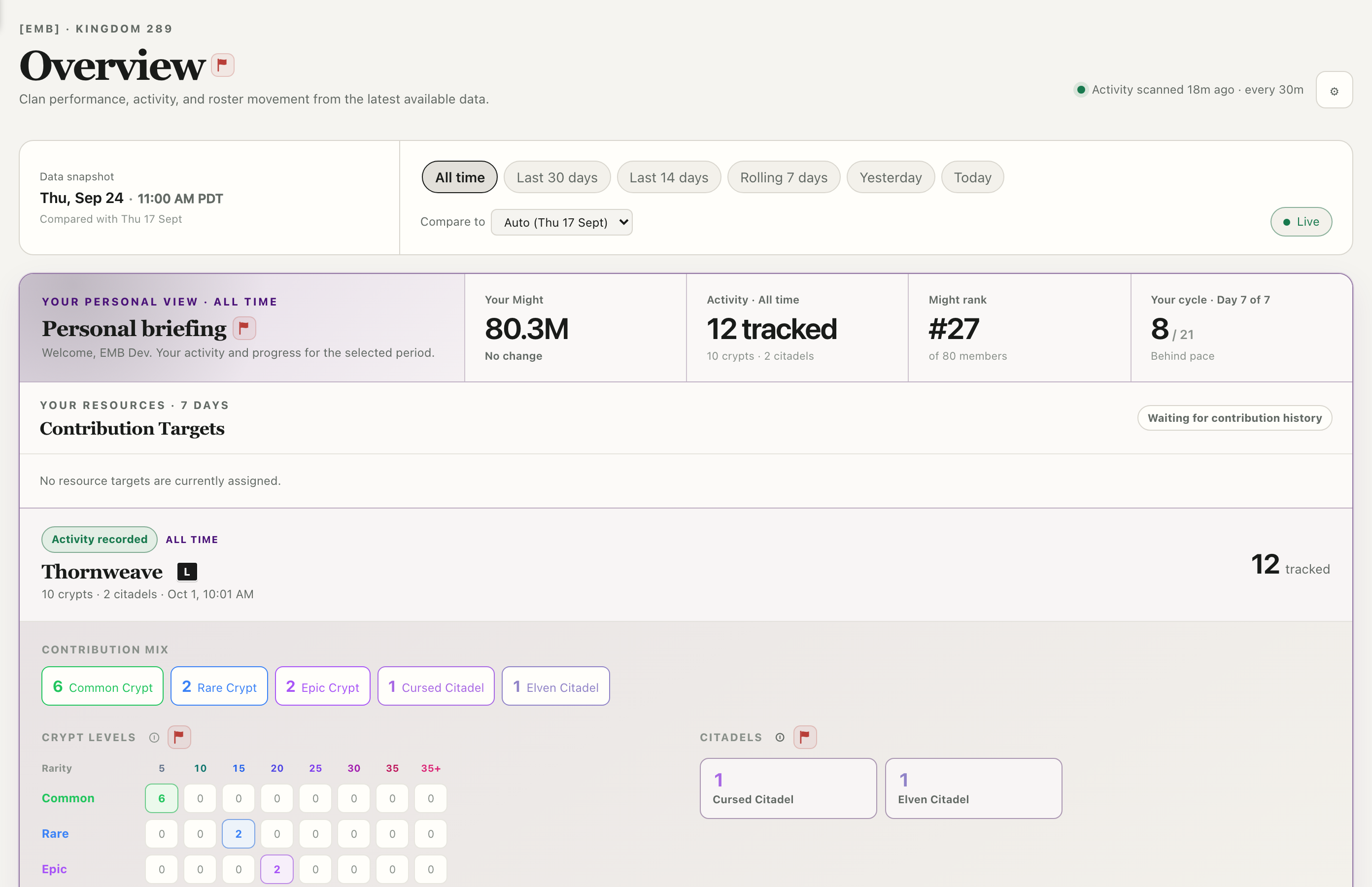
Overview

See scan status, personal progress, clan activity, and the roster.

IN THE SIDEBARMembers → Overview
USE IT
  1. 01Read Data snapshot and latest scan status before comparing values.
  2. 02Switch the time range and Compare to baseline to see movement.
  3. 03Follow a Clan briefing signal into RSS, activity, or events; use Roster and kingdom to search, sort, or export.
Overview screen showing the controls described above
Overview · sample dataSwipe image to inspect →View full screenshot ↗
02 / CLAN

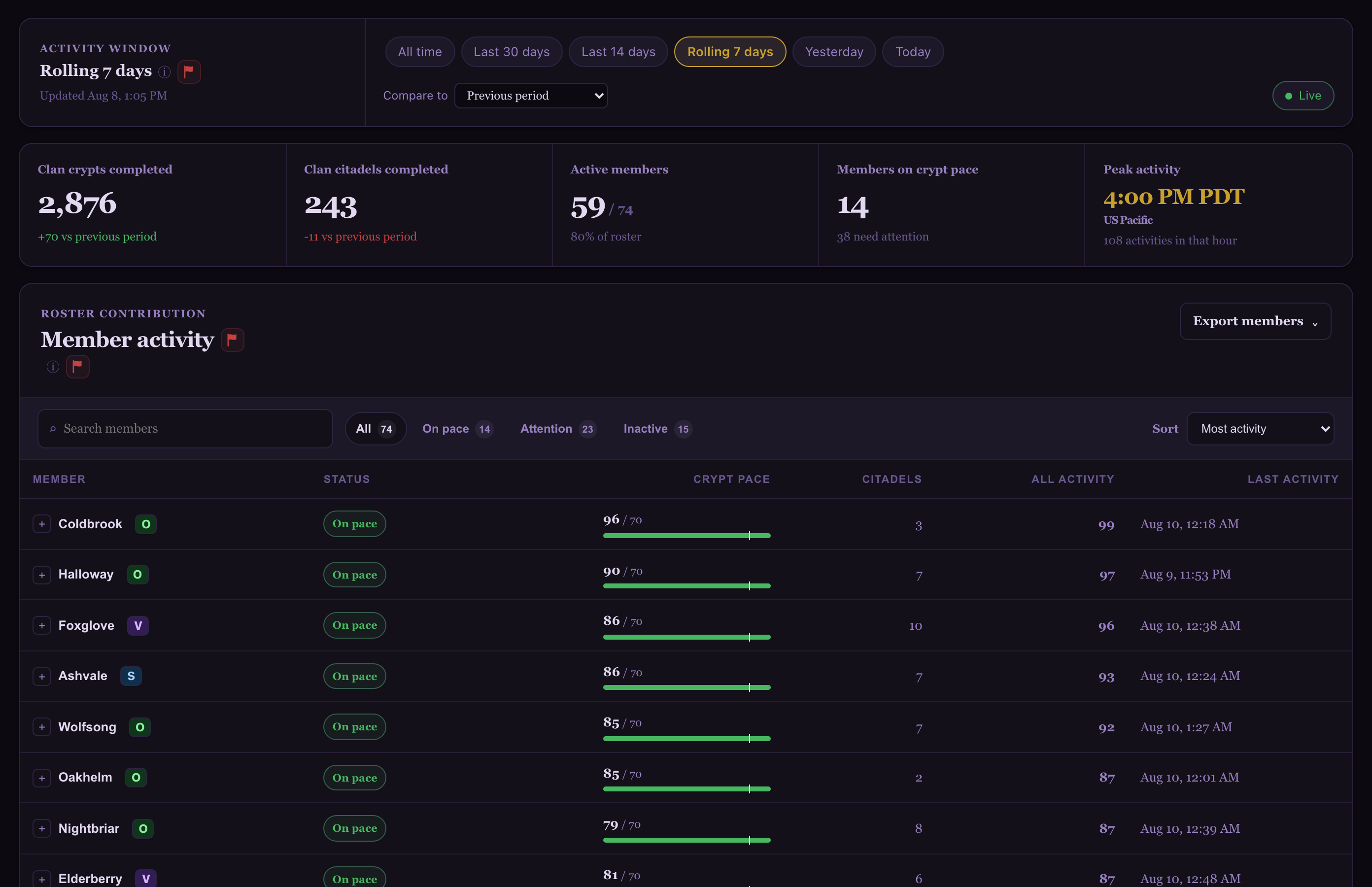
Clan Activity

Inspect crypt and citadel participation, patterns, and history.

IN THE SIDEBARSuperiors → Clan Activity
USE IT
  1. 01Set the period before comparing participation.
  2. 02Use crypt and citadel boards to find who contributed and what counted.
  3. 03Open history or the archive when you need recorded chests rather than a summary.

Recorded activity depends on successful scans. Use history before treating a quiet period as inactivity.

Clan Activity screen showing the controls described above
Clan Activity · anonymized product captureSwipe image to inspect →View full screenshot ↗
03 / CLAN

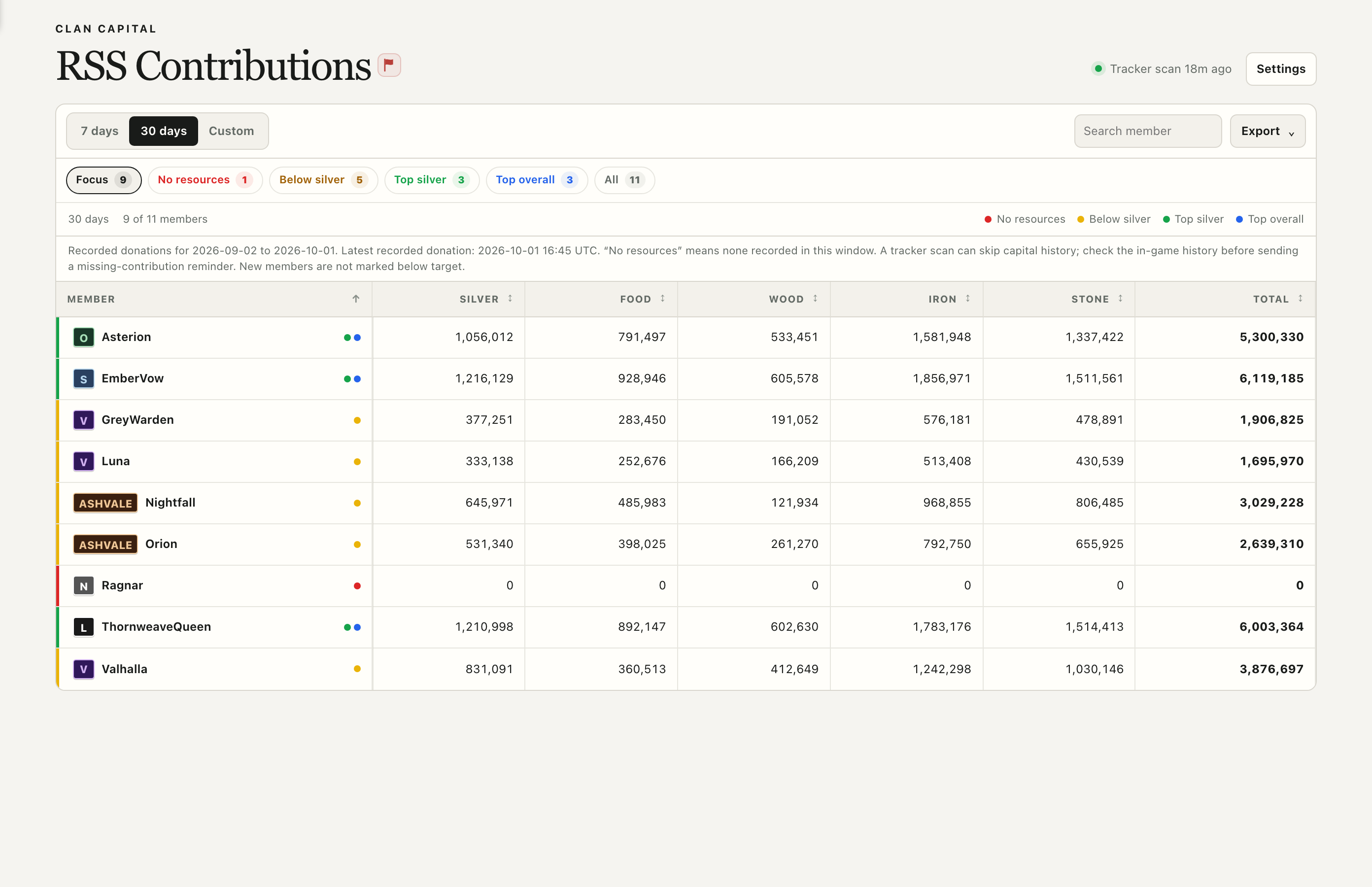
RSS Tracker

Review recorded resource donations by member and time range.

IN THE SIDEBARSuperiors → RSS Tracker
USE IT
  1. 01Choose 7 days, 30 days, or Custom at the top.
  2. 02Click Focus, No resources, Below silver, or Top silver; search or sort a column.
  3. 03Use Export for visible rows. Leaders can open Settings to adjust targets.

“No resources” means none recorded in this window. Confirm in-game history before sending a reminder.

RSS Tracker screen showing the controls described above
RSS Tracker · anonymized product captureSwipe image to inspect →View full screenshot ↗
04 / CLAN

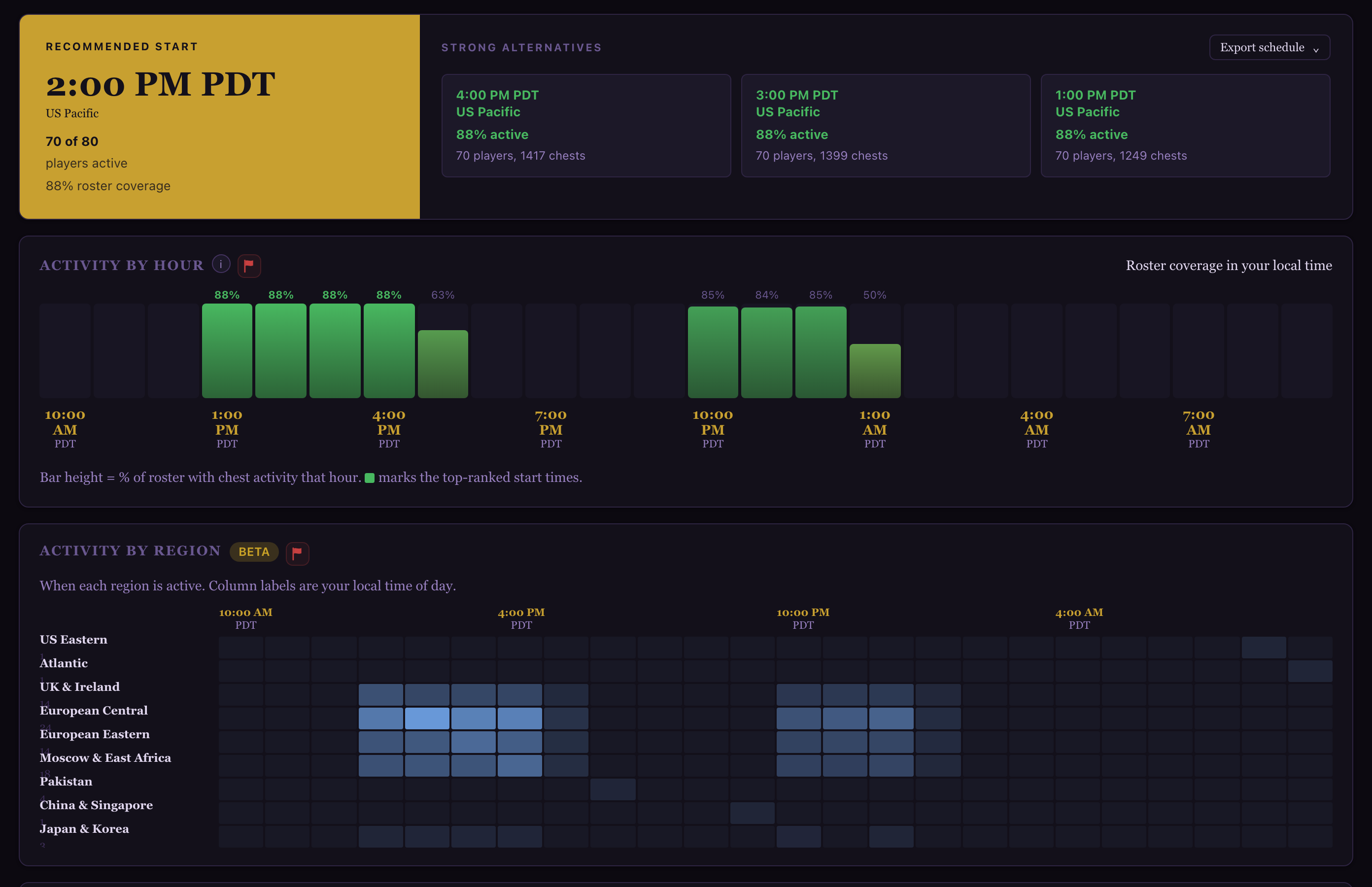
Raid Scheduler

Compare proposed event times with activity history and player timezones.

IN THE SIDEBARSuperiors → Raid Scheduler
USE IT
  1. 01Start with the recommended event window and its game-time conversion.
  2. 02Compare the schedule chart and activity matrix before choosing a time.
  3. 03Export the schedule; where allowed, correct an inferred timezone with the pencil on a player row.

Inferred timezone clusters are beta estimates; confirmed player timezones are more reliable.

Raid Scheduler screen showing the controls described above
Raid Scheduler · anonymized product captureSwipe image to inspect →View full screenshot ↗
05 / CLAN

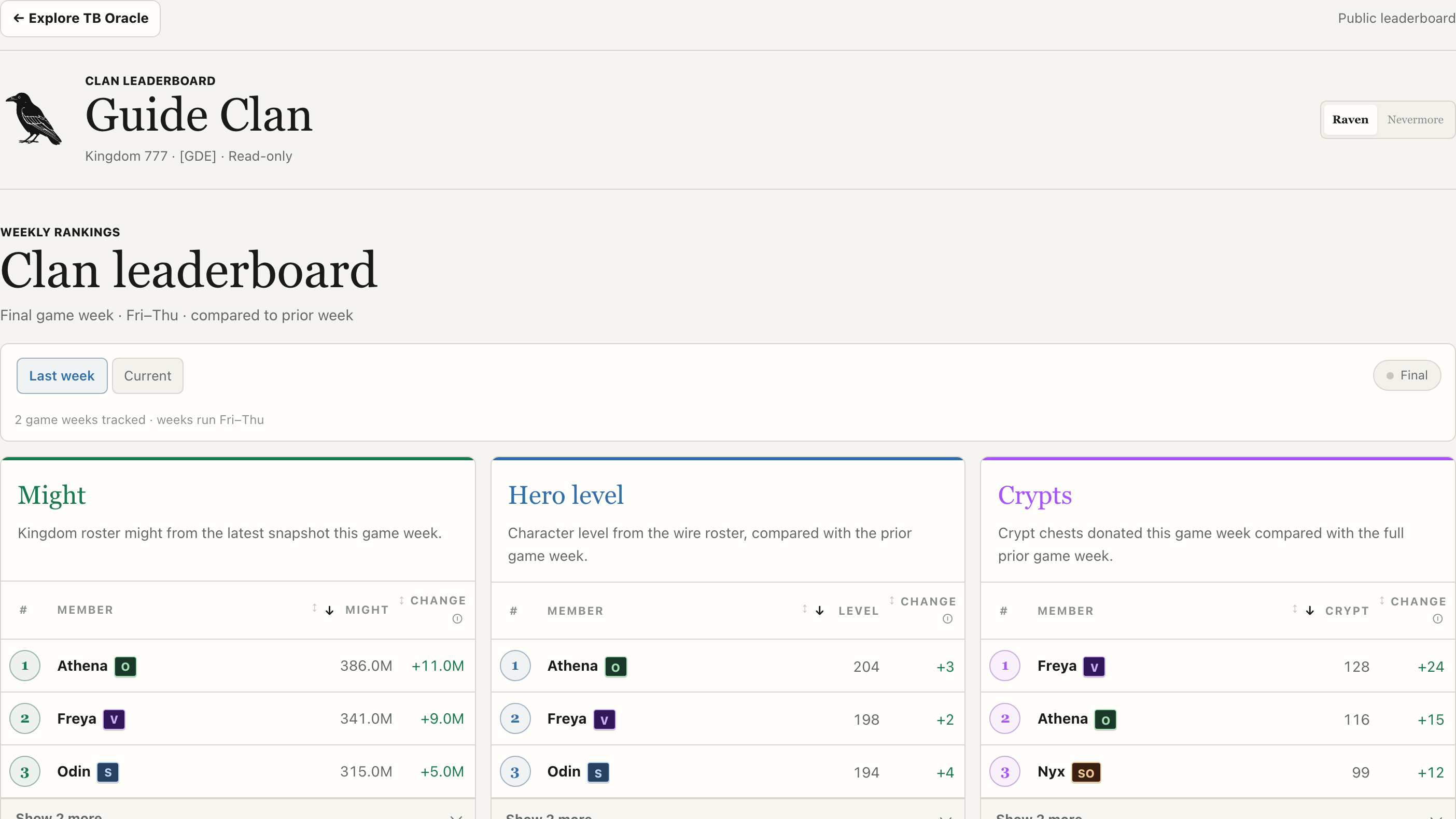
Public Leaderboard

Share a read-only clan week with people who do not have a dashboard login.

IN THE SIDEBARSuperiors → Leaderboard · PUBLIC
USE IT
  1. 01Leaders copy the link from Settings → Public page; Superiors can open Leaderboard in the sidebar.
  2. 02Share the four-digit PIN only if your clan enabled one.
  3. 03Visitors select the week and read the board and any challenges the clan shares publicly.
Public Leaderboard screen showing the controls described above
Public Leaderboard · sample clanSwipe image to inspect →View full screenshot ↗
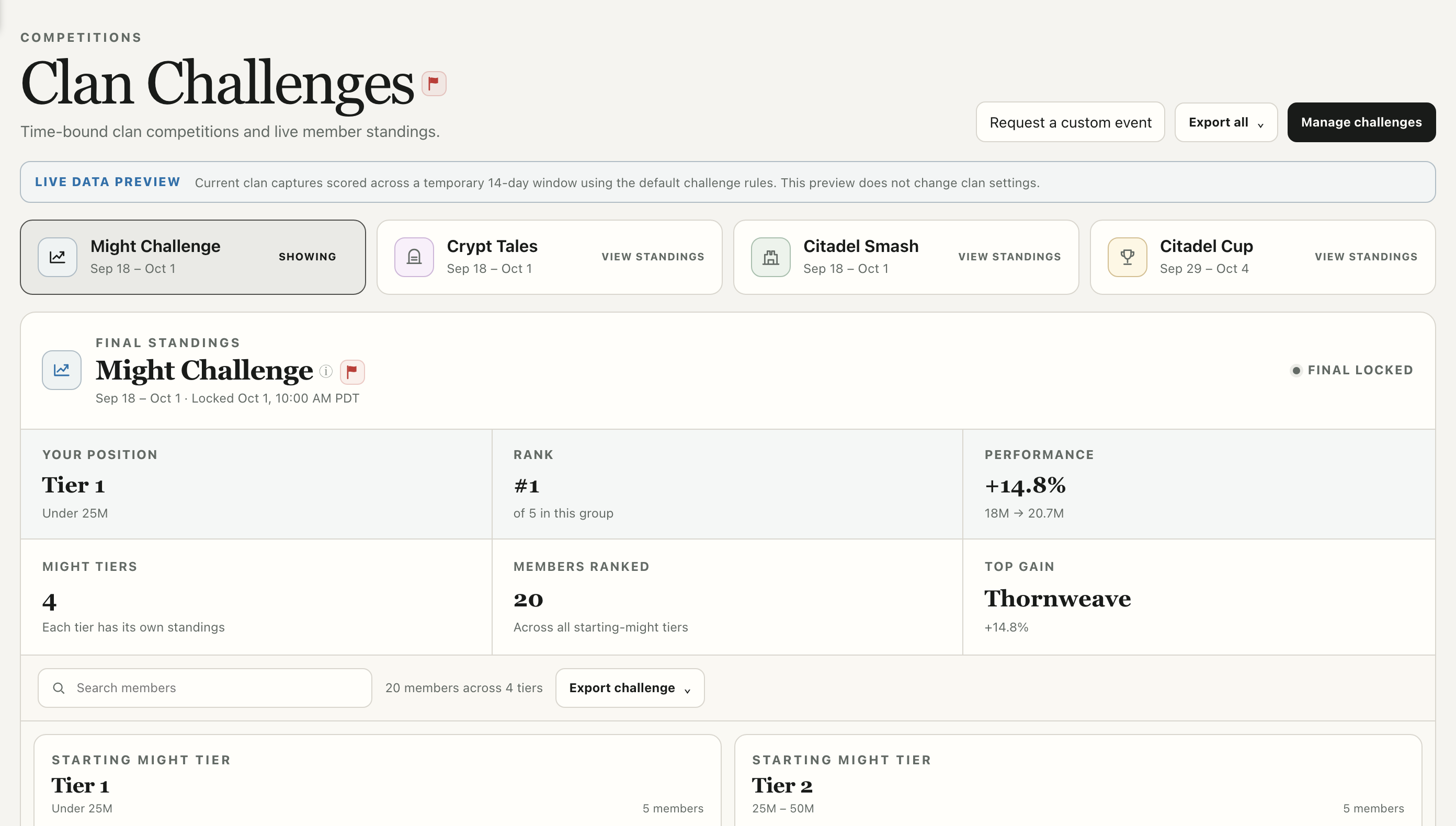
06 / CLAN

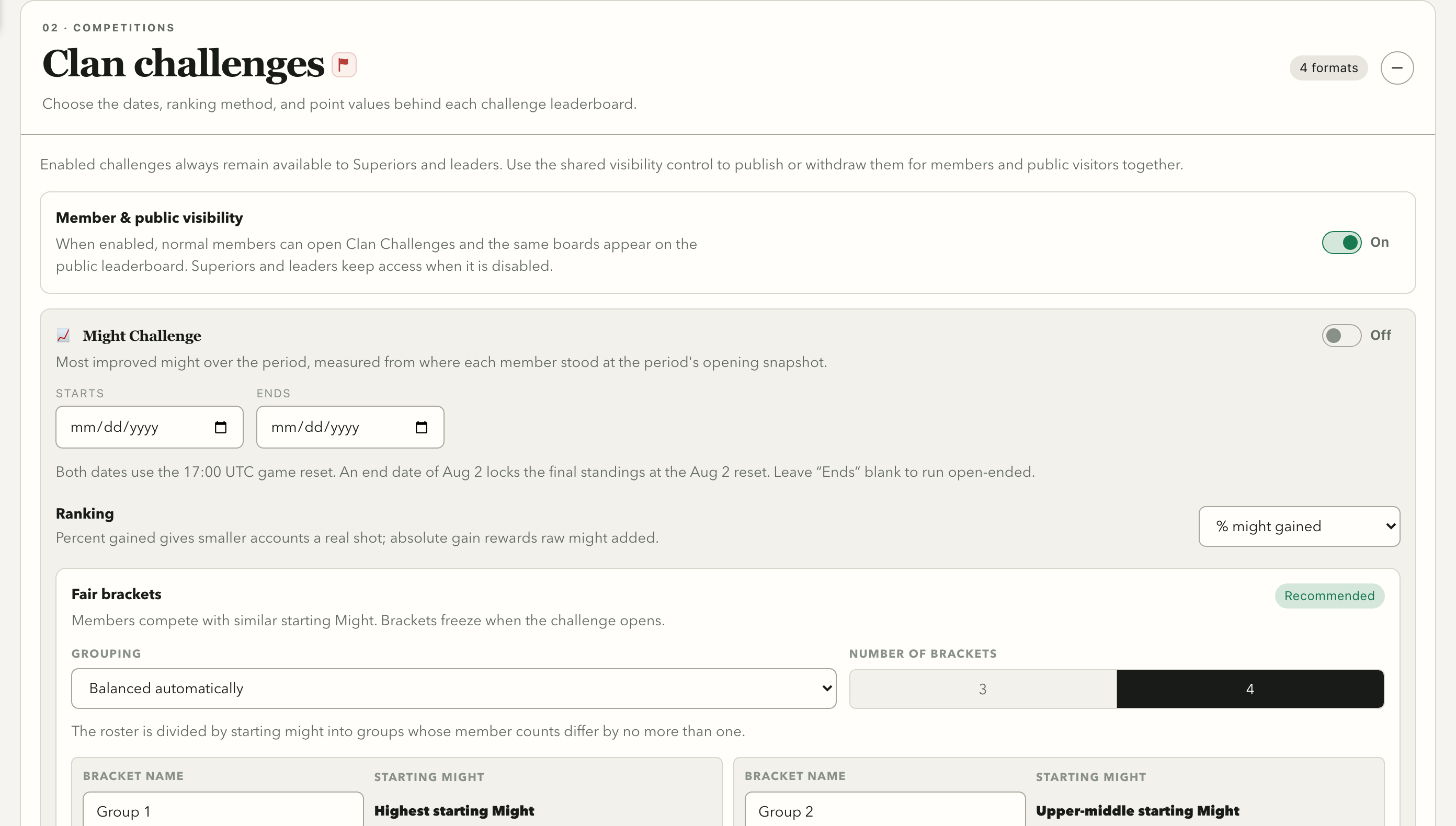
Clan Challenges

Set up a timed competition and read its member standings.

IN THE SIDEBARMembers → Clan Challenges
USE IT
  1. 01Leaders click Manage challenges, or Configure challenges when none is active.
  2. 02Set rules in Settings and choose whether members and visitors can see the challenge.
  3. 03During a challenge, open its board for live standings and score details.
Clan Challenges screen showing the controls described above
Clan Challenges · sample tiersSwipe image to inspect →View full screenshot ↗
MEMBERS

Event boards

Open the current run, inspect standings, and check when they were captured.

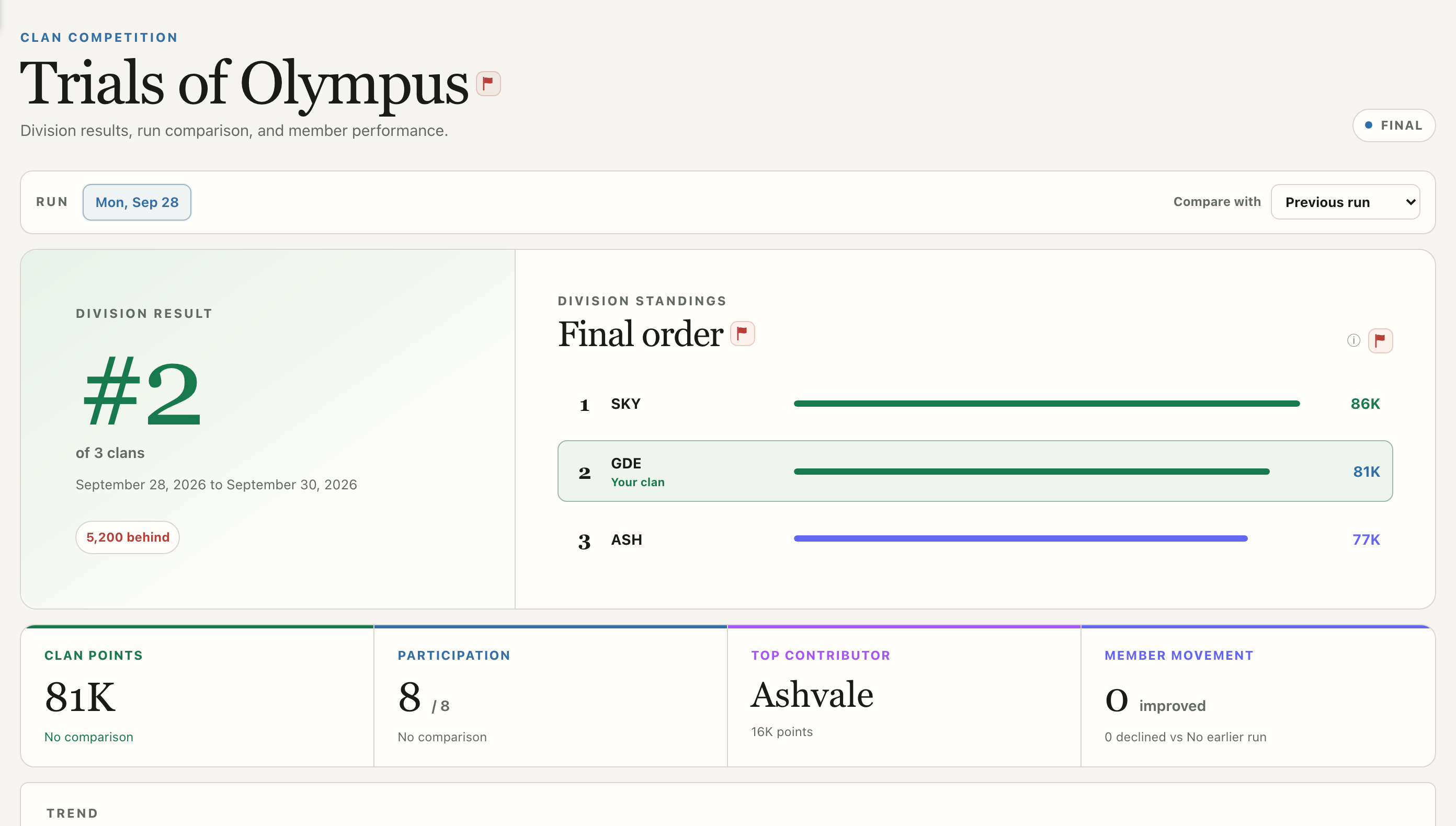
01 / EVENT

Trials of Olympus

Follow the three-clan division and individual contributions.

IN THE SIDEBARMembers → Trials of Olympus
USE IT
  1. 01Choose the tournament run.
  2. 02Compare division standings and your clan’s position.
  3. 03Open member contributions on the captured board.
Trials of Olympus screen showing the controls described above
Trials of Olympus · sample runSwipe image to inspect →View full screenshot ↗
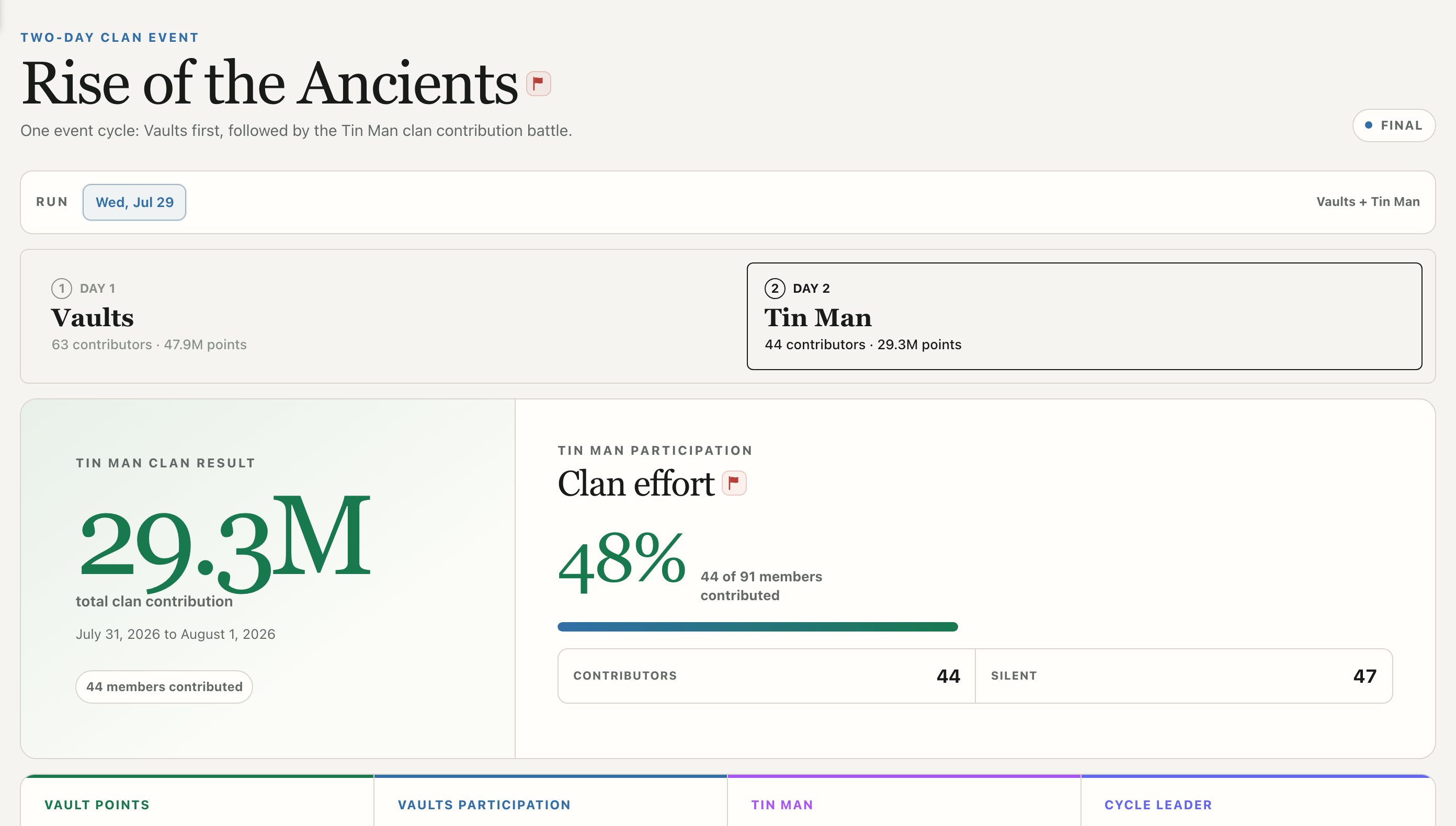
02 / EVENT

Rise of the Ancients

Read Vaults and Tin Man results for a selected run.

IN THE SIDEBARMembers → Rise of the Ancients
USE IT
  1. 01Choose the run and day.
  2. 02Read Vaults on day one and Tin Man on day two.
  3. 03Check member results and capture time before sharing a ranking.
Rise of the Ancients screen showing the controls described above
Rise of the Ancients · sample runSwipe image to inspect →View full screenshot ↗
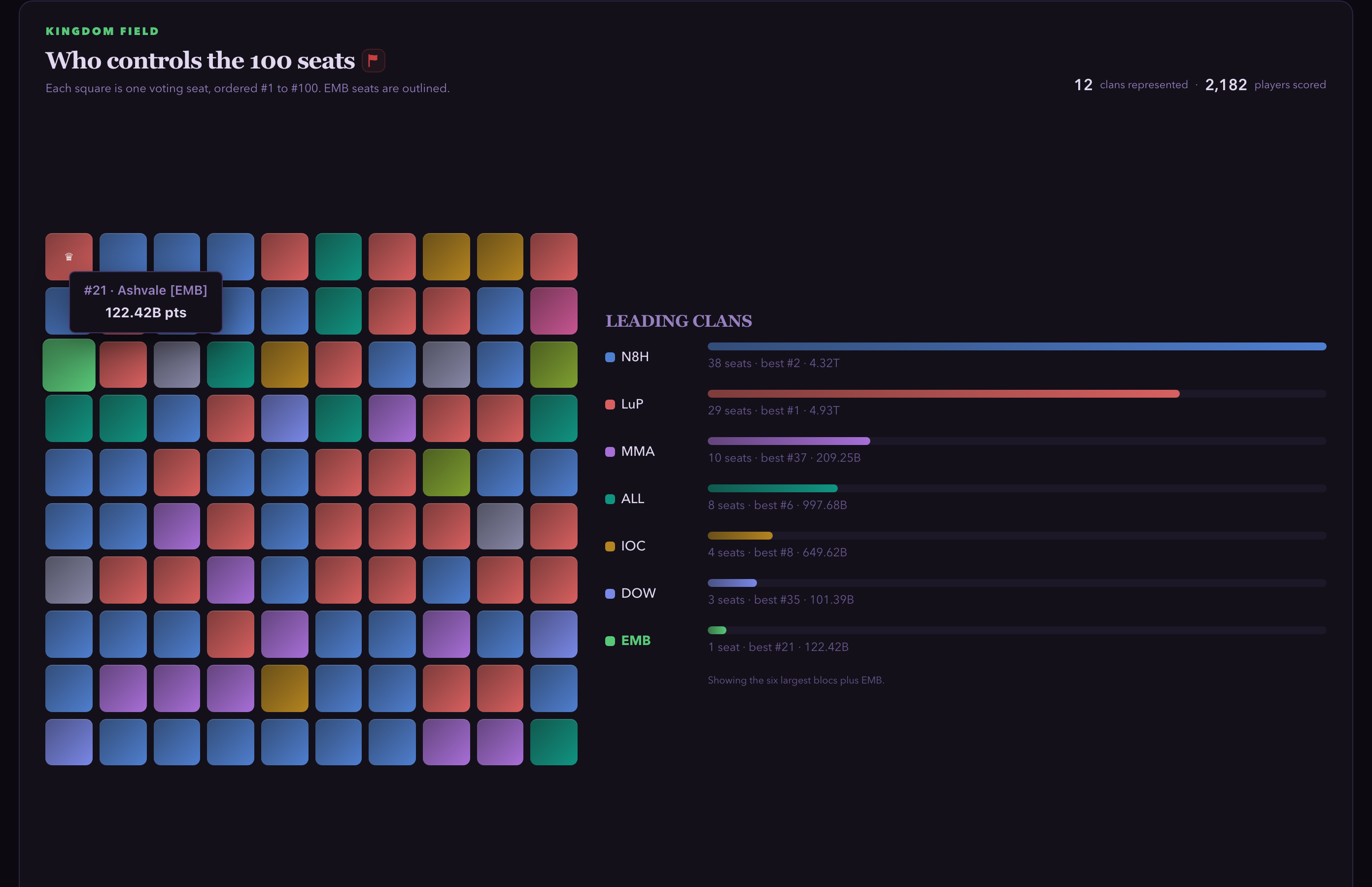
03 / EVENT

Clash for the Throne

See which clans hold the kingdom’s 100 voting seats.

IN THE SIDEBARMembers → Clash for the Throne
USE IT
  1. 01Find your clan in the colored seat map.
  2. 02Compare leading-clan bars and seat changes.
  3. 03Hover or tap a seat for the player and points behind it.
Clash for the Throne screen showing the controls described above
Clash for the Throne · anonymized product captureSwipe image to inspect →View full screenshot ↗
04 / EVENT

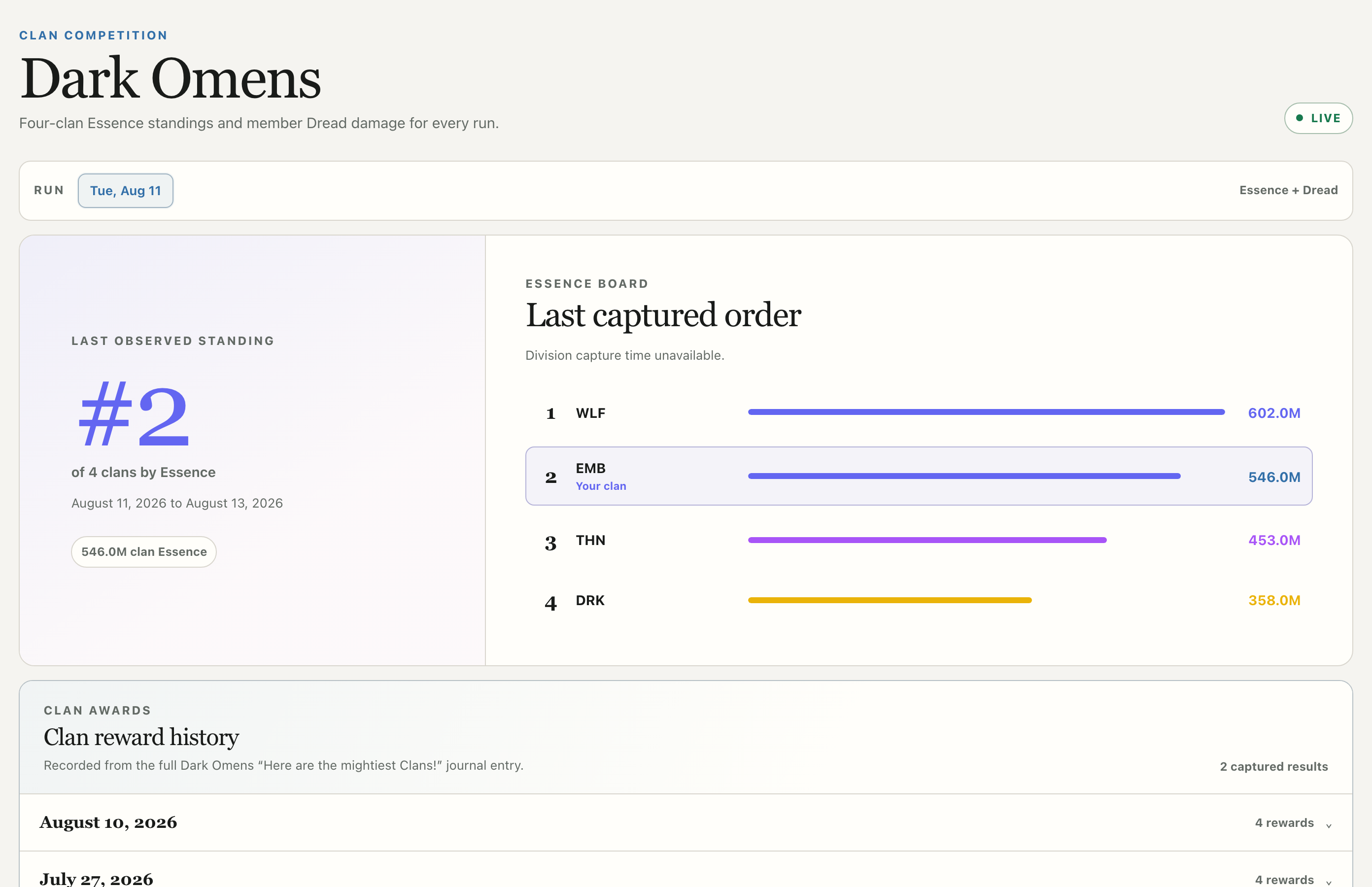
Dark Omens

Read Essence standings, Dread damage, and recorded rewards.

IN THE SIDEBARMembers → Dark Omens
USE IT
  1. 01Choose the run at the top.
  2. 02Read the Essence order and last observed standing.
  3. 03Scroll to Dread damage for member scores, then open Clan reward history.
Dark Omens screen showing the controls described above
Dark Omens · sample runSwipe image to inspect →View full screenshot ↗
05 / EVENT

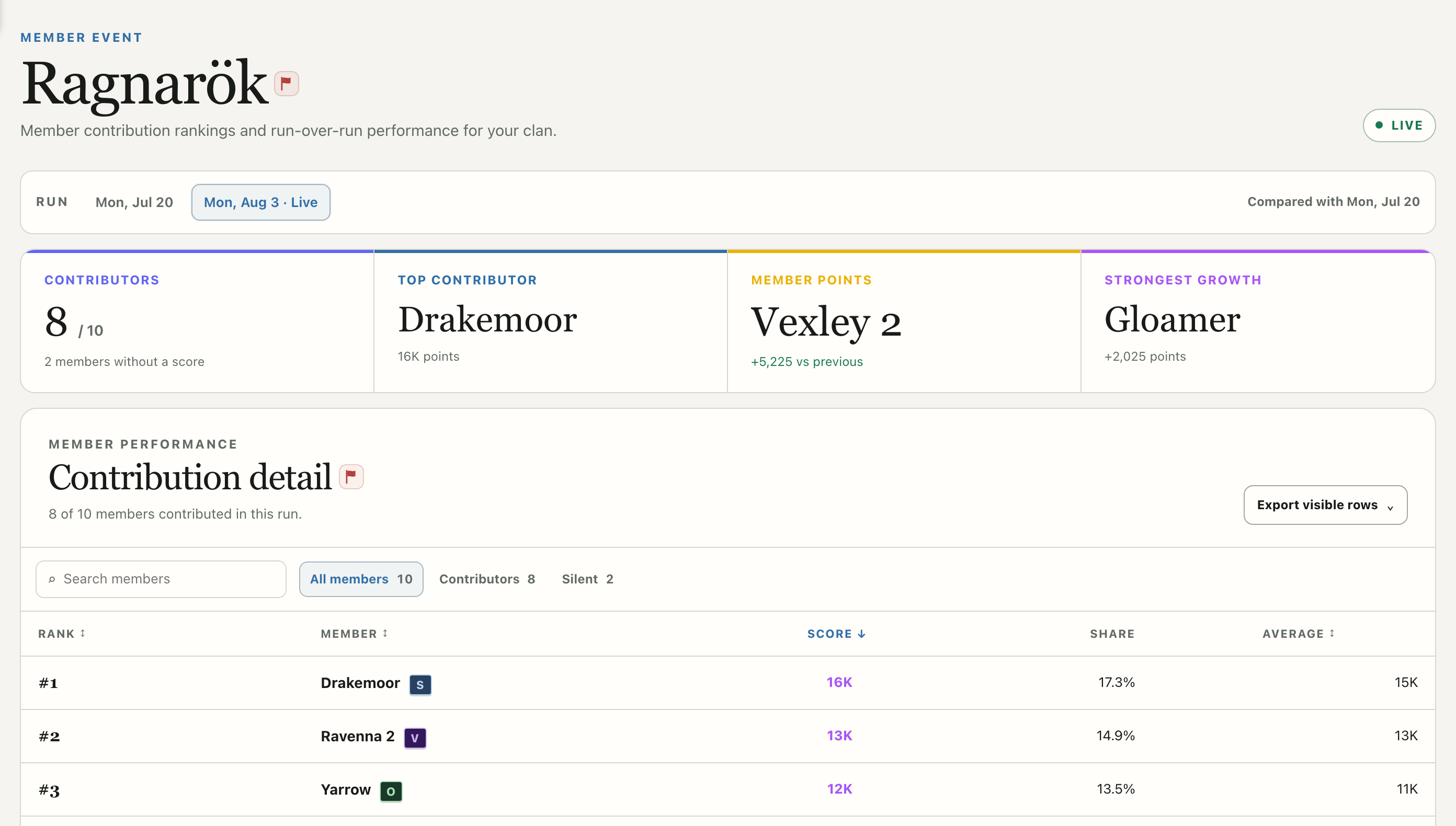
Ragnarök

Read cross-kingdom clan standings for a selected run.

IN THE SIDEBARMembers → Ragnarök
USE IT
  1. 01Choose the current or historical run.
  2. 02Find your clan in the cross-kingdom standings.
  3. 03Check the capture time before treating it as final.
Ragnarök screen showing the controls described above
Ragnarök · sample runSwipe image to inspect →View full screenshot ↗
06 / EVENT

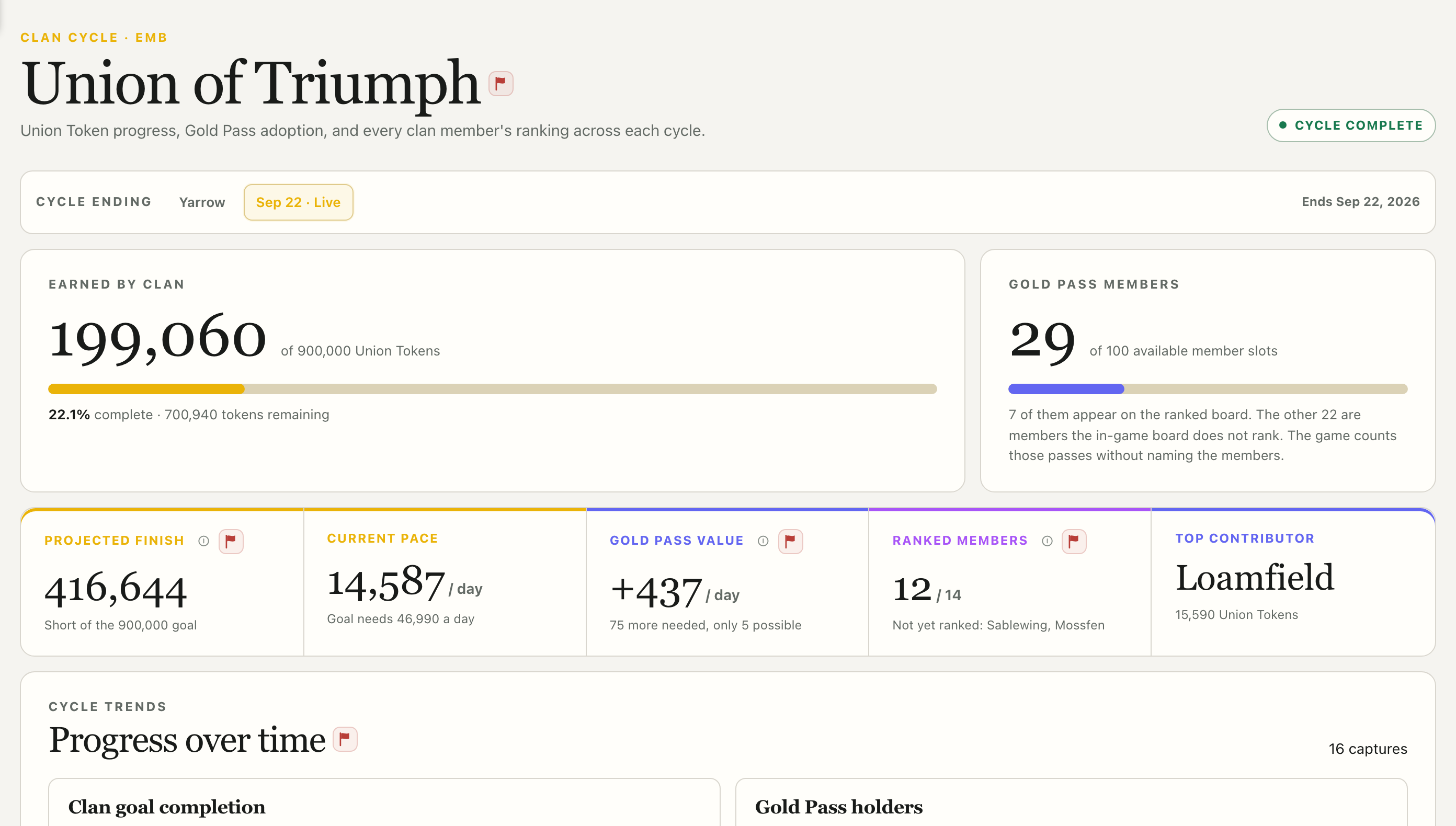
Union of Triumph

Follow Gold Passes, Union Tokens, and member rankings.

IN THE SIDEBARMembers → Union of Triumph
USE IT
  1. 01Choose the tournament run.
  2. 02Compare clan totals and member ranking.
  3. 03Check the capture time before using the result for a decision.
Union of Triumph screen showing the controls described above
Union of Triumph · anonymized sample runSwipe image to inspect →View full screenshot ↗
BEFORE USING A BOARD

Check the capture time

Rankings and activity reflect the scans Oracle recorded. Check the run and capture time before using a result to make a clan decision.

Back to top ↑